
Because most vehicles are equipped with navigation systems and other helpful tech, keeping your software updated is essential. Most updates release on an ad hoc basis, and you must track things yourself, especially when it concerns phone compatibility. However, methods differ from manufacturer to manufacturer, and sometimes things are not so intuitive for the customers.
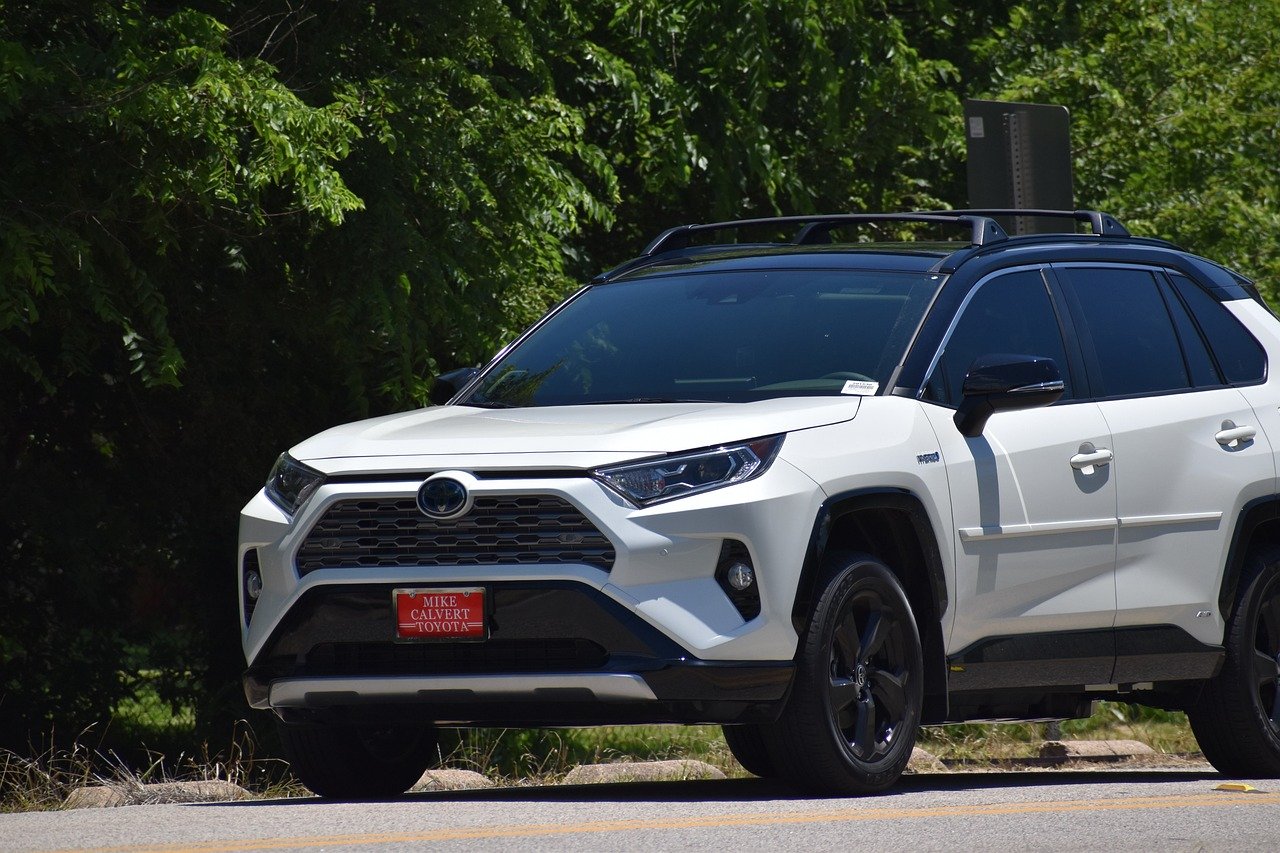
Today, let’s look at how to install the navigation app on a Toyota. The process is pretty straightforward once you get used to the Entune suite.
If you’re a Toyota owner, you should now be familiar with the Entune suite. But if you’re just browsing for a vehicle, you should know it’s a multimedia system in recent models. It consists of various tools, functions, and programs that give access to various capabilities when driving. The system is easily accessible through the touch screen panel in the car.
The navigation app is part of the system, of course. Imagine it as your vehicle’s Google Maps that doesn’t distract you from driving and is used on the touch screen. The only issue is it doesn’t come pre-installed nowadays because Toyota turned to the pay-for-subscription method. However, you’ll have a trial period, at the end of which you’ll have to pay $5 per month to continue using it.
Now that we’ve discussed the basics, it’s time for instructions on installing the navigation app.
Toyota’s system heavily depends on your smartphone and all the applications the company developed. To begin the process, you must first download the Entune app on your phone from either AppStore or Google Market. Then, follow these steps:
However, you might encounter another potential problem and, thus, need our guidance again.
Due to how the app was coded, it’s necessary to update it as soon as the new version is released. Otherwise, you may end up with an incomplete map and missing sections of the road or signs, leading to fines and traffic law violations.
So, if later down the track you start having such an issue, update the Entune app on your phone first and then proceed to do the following:
When updating the Toyota Entune system, you should consider a couple of things. For instance, if the vehicle model has any existing updates or additions, it will directly affect how well the vehicle pairs up with smartphones and accesses internet-based services.
So, each time you update, ensure everything checks out for your model. The updates may have significant fixes and improve performance but, on the other hand, do not work so well if your Toyota is an older model.
Scout GPS is a navigation app that’s part of Toyota’s Entune System. It tracks your current location and makes it easy to travel around. Recently, Toyota has stopped pre-installing it on all vehicles as they’ve turned to a subscription-based model. So, if you want it there, follow the instructions here to set it up quickly.
If you’re having navigation issues, this is probably due to the mismatch between the phone app version and Scout GPS. To solve that, simply update the Entune application on your mobile device, and only then proceed to update the navigation app. However, ensure newer versions are compatible with your current car model, so there would be no further complications.



The 2027 Civic Type R goes on sale in October 2026, and it starts at $49,990, including the $1,295 destination charge.
Read the Full Article
Part of BMW’s Neue Klasse (new class) rollout of redesigned models, the 2027 BMW 3 Series is all-new and goes on sale in the first quarter of 2027.
Read the Full Article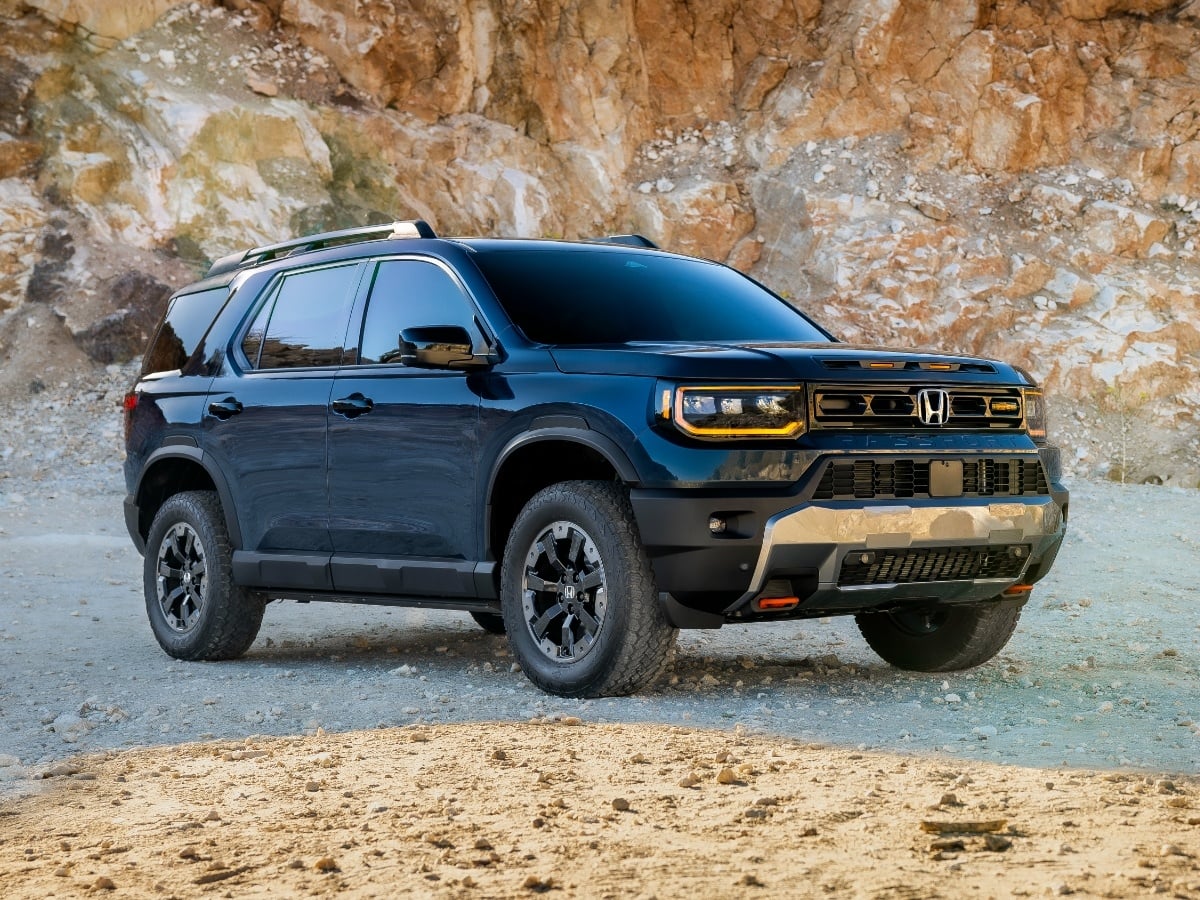
Updates to the 2027 Honda Passport TrailSport include a reworked suspension, improved steering, subtle styling enhancements, and added standard equipment.
Read the Full Article
The midsize 2027 Mercedes GLE remains available in original and spicy Coupe recipes, now with standard 4Matic all-wheel drive (AWD), MBUX Superscreen technology, and a panoramic glass sunroof for ...See More
Read the Full Article