
Technology has made life easier, and our cars are no exception. With the advent of virtual assistance, driving has become more comfortable and safer. Apps like Google Maps have made navigation simpler by providing real-time turn-by-turn directions and traffic updates. However, with the integration of virtual assistants, like Google Assistant, in Google Maps, drivers can access many other features hands-free, like sending and receiving messages and making calls, with just their voice.

While these features are convenient, they can also be distracting and frustrating, especially when you're trying to concentrate on the road. Imagine your virtual assistant blurting out directions every time you start your car. That could be annoying. This is where the Google Assistant Driving Mode comes in.
Here's what you need to know about the Google Assistant driving mode and how to turn it off in Google Maps while driving.
While Google Map is an app that needs no introduction, not all people are familiar with its features, including the Google Assistant Driving Mode. It’s a feature that allows you to use your voice to navigate, make calls, send messages, and control your phone's media while driving. It's intended to make driving safer and more convenient by minimizing distractions and allowing you to keep your hands on the wheel.
Before driving mode is on, open Google Maps and type your destination in the search box. In Google Maps, tap on “Settings” and “Navigation settings,” navigate to Google Assistant settings and toggle on “When Navigating in Google Maps.” Finally, tap on the Start navigation option, and Google Assistant Driving Mode will launch.
Driving mode promotes hands-free interaction through voice prompts and read-aloud text messaging. However, a setting in Google Maps automatically turns the driving mode on whenever it connects to your car’s Bluetooth. So, if your phone launches driving mode every time you are in your car, this setting is the cause. Fortunately, you can disable driving mode anytime in your Google Assistant settings.
There are two ways to turn off Google Assistant's Driving Mode for Google Maps. You can disable it on Google Maps in the Driving Mode settings while driving or turn it off in your Google Assistant's settings when you are not driving.
To turn off Driving Mode while driving, tap the four squares icon in the lower right corner of the Google Maps interface and then scroll down to tap "Settings." Simply tap "Turn off Driving Mode" to turn off the feature. A confirmation window will appear, requesting that you tap "Turn off" again, and you will have successfully turned off driving mode in Google Maps.
To turn off Driving Mode in your Google Assistant's settings interface, open the Google Maps app and tap on your profile picture in the upper right corner. Then select "Google Maps Settings" in the Profile picture menu. In the settings, scroll down and tap "Navigation settings" and then tap "Google Assistant settings" on the following screen to turn off driving mode.
No matter how you turn off the Driving Mode, always make sure the settings are customized to your liking. Spend a few minutes in Google Maps and try various things to ensure you're comfortable with the result.
The Google Assistant Driving Mode helps you do many things while you drive. You can read and send messages, make calls, and control everything with simple voice prompts. However, things can quickly get distracting if you always have the “Drive Mode” on.
Luckily, turning it off is nothing too complicated, and you can do it in the two ways described above. This way, whenever you connect your phone to the onboard computer, you won’t have to deal with the assistant yelling out directions.
So, next time you are about to go behind the wheel, make sure you customize your setting thoroughly to exclude any possible distractions or annoyances. Hopefully, the information provided in the article will further assist you.


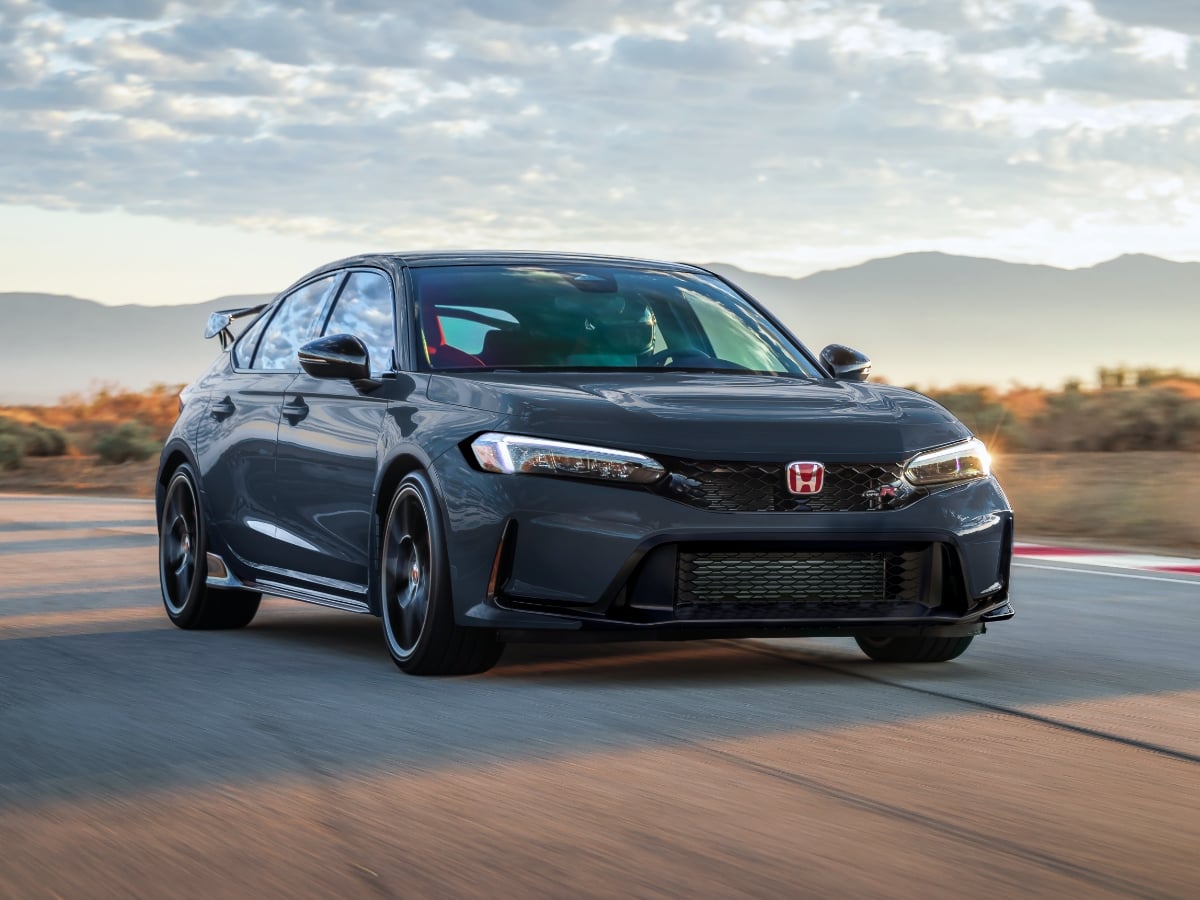
The 2027 Civic Type R goes on sale in October 2026, and it starts at $49,990, including the $1,295 destination charge.
Read the Full Article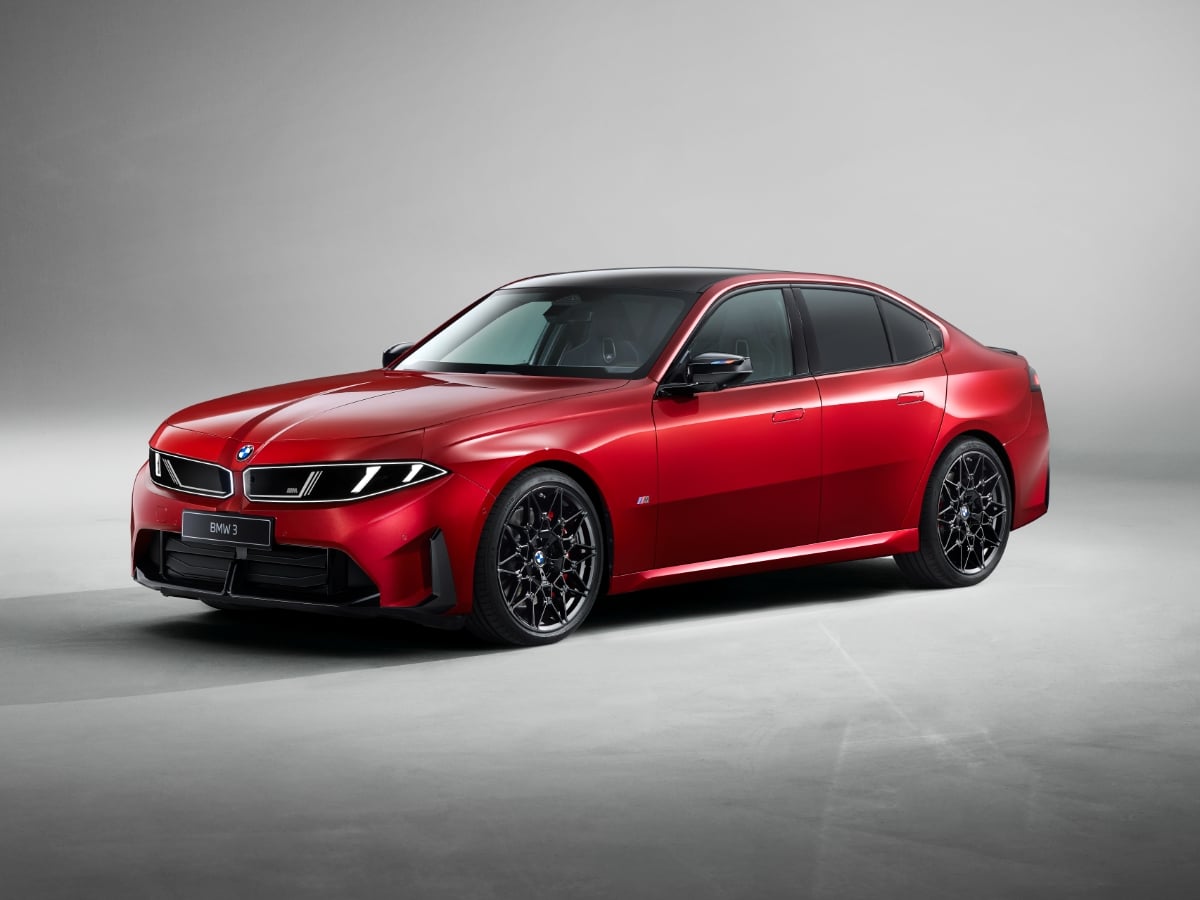
Part of BMW’s Neue Klasse (new class) rollout of redesigned models, the 2027 BMW 3 Series is all-new and goes on sale in the first quarter of 2027.
Read the Full Article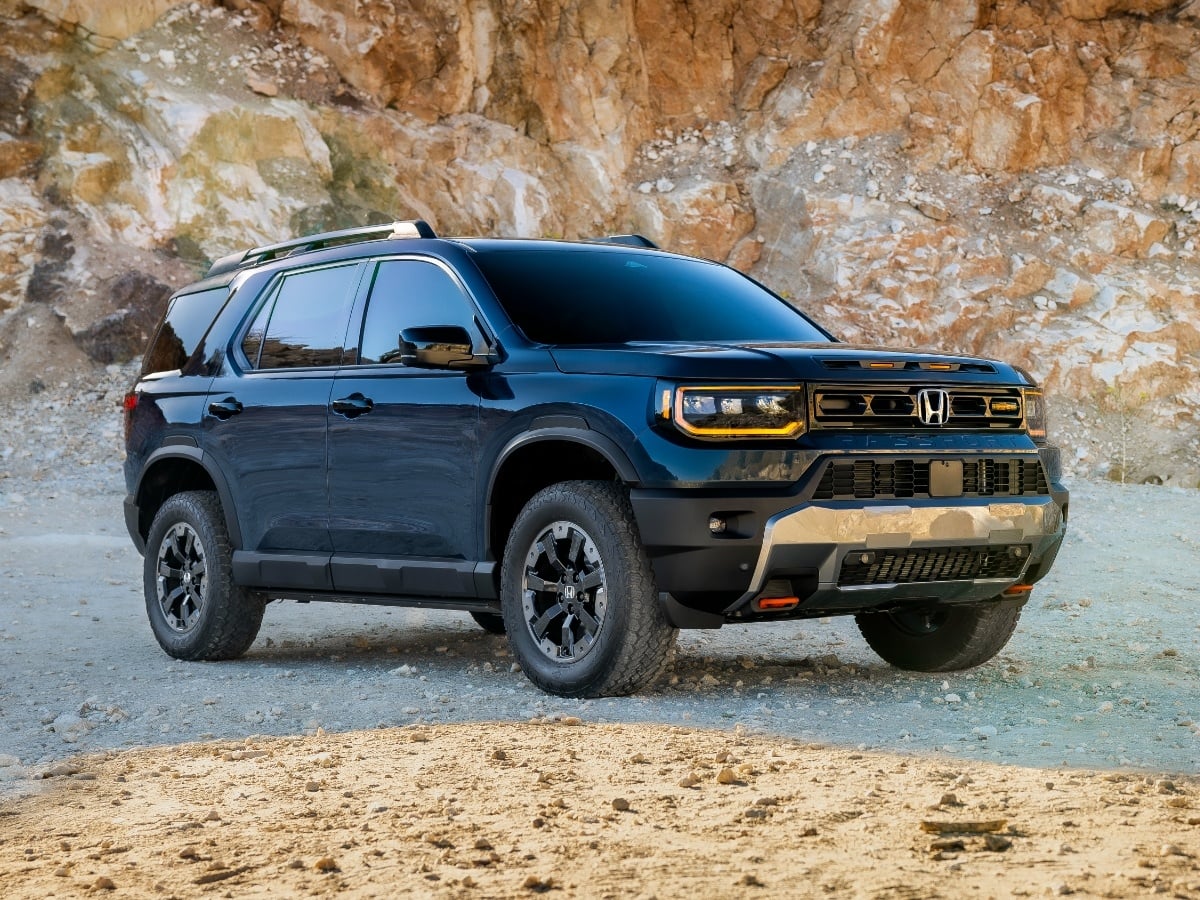
Updates to the 2027 Honda Passport TrailSport include a reworked suspension, improved steering, subtle styling enhancements, and added standard equipment.
Read the Full Article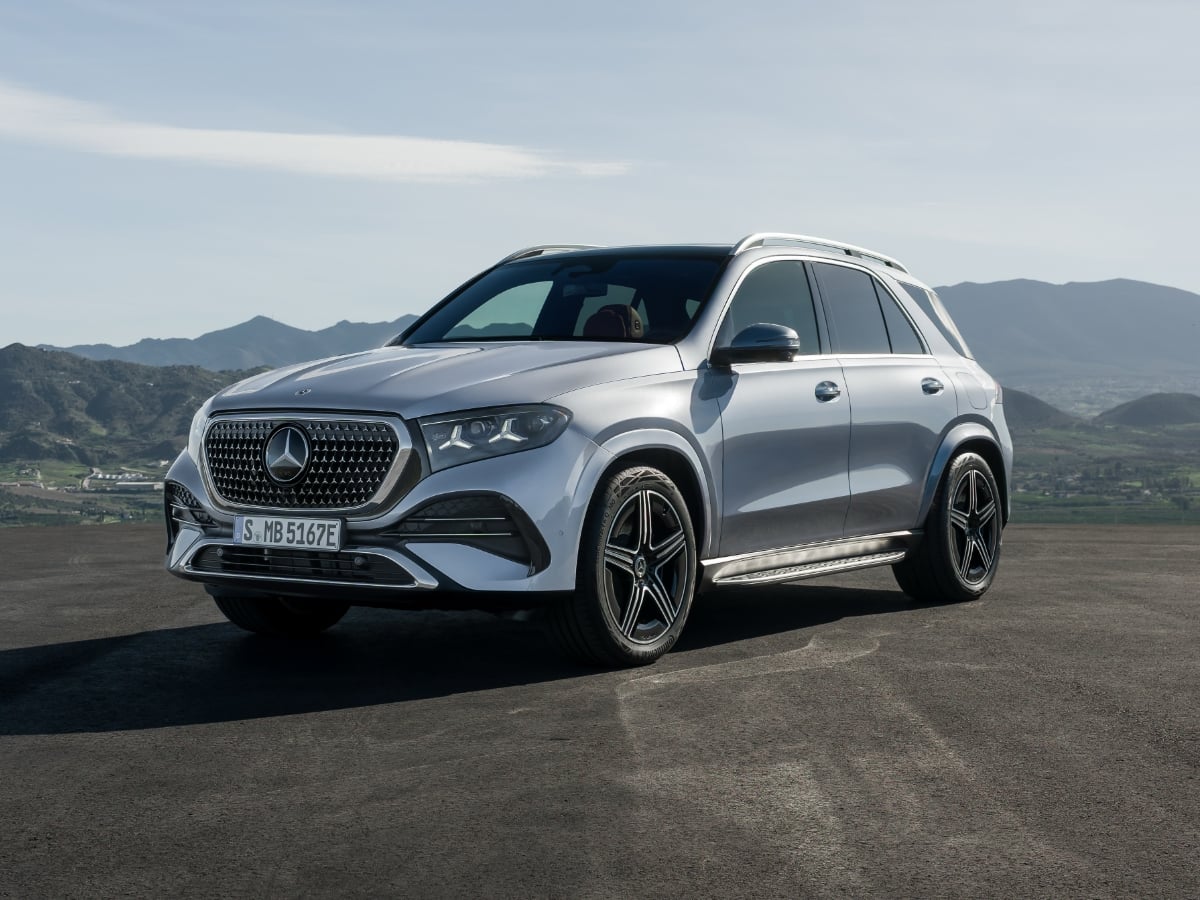
The midsize 2027 Mercedes GLE remains available in original and spicy Coupe recipes, now with standard 4Matic all-wheel drive (AWD), MBUX Superscreen technology, and a panoramic glass sunroof for ...See More
Read the Full Article